---
title: "How to setup Webpack +2.0 from scratch in 2017"
description: "Set up Webpack 2 from scratch: install it, write the config, connect it to your HTML and watch for changes. Written in 2017; Vite is the modern choice."
canonical: "https://www.trevorlasn.com/blog/easy-guide-for-webpack-2-0-from-scratch"
author: "Trevor I. Lasn"
published: "2017-04-05"
last-updated: "2026-02-15"
topics: ["Developer tools", "JavaScript"]
outdated: true
---
# How to setup Webpack +2.0 from scratch in 2017
Set up Webpack 2 from scratch: install it, write the config, connect it to your HTML and watch for changes. Written in 2017; Vite is the modern choice.
By Trevor I. Lasn · Published 2017-04-05 · Updated 2026-02-15 · https://www.trevorlasn.com/blog/easy-guide-for-webpack-2-0-from-scratch
> This article is outdated. The tools or APIs discussed here have changed significantly since this was written. The article is preserved for reference, but the code examples may no longer work as shown.
> **Update (2026):** This article covers Webpack 2, which is now ancient (Webpack is at v5.x). The global installation approach shown here is explicitly warned against in the official Webpack docs. Modern projects typically use [Vite](https://vite.dev/), which requires minimal configuration. If you do need Webpack, install it as a local devDependency.
If you're feeling intimidated by Webpack, don't worry; you're not alone. Webpack is intimidating.
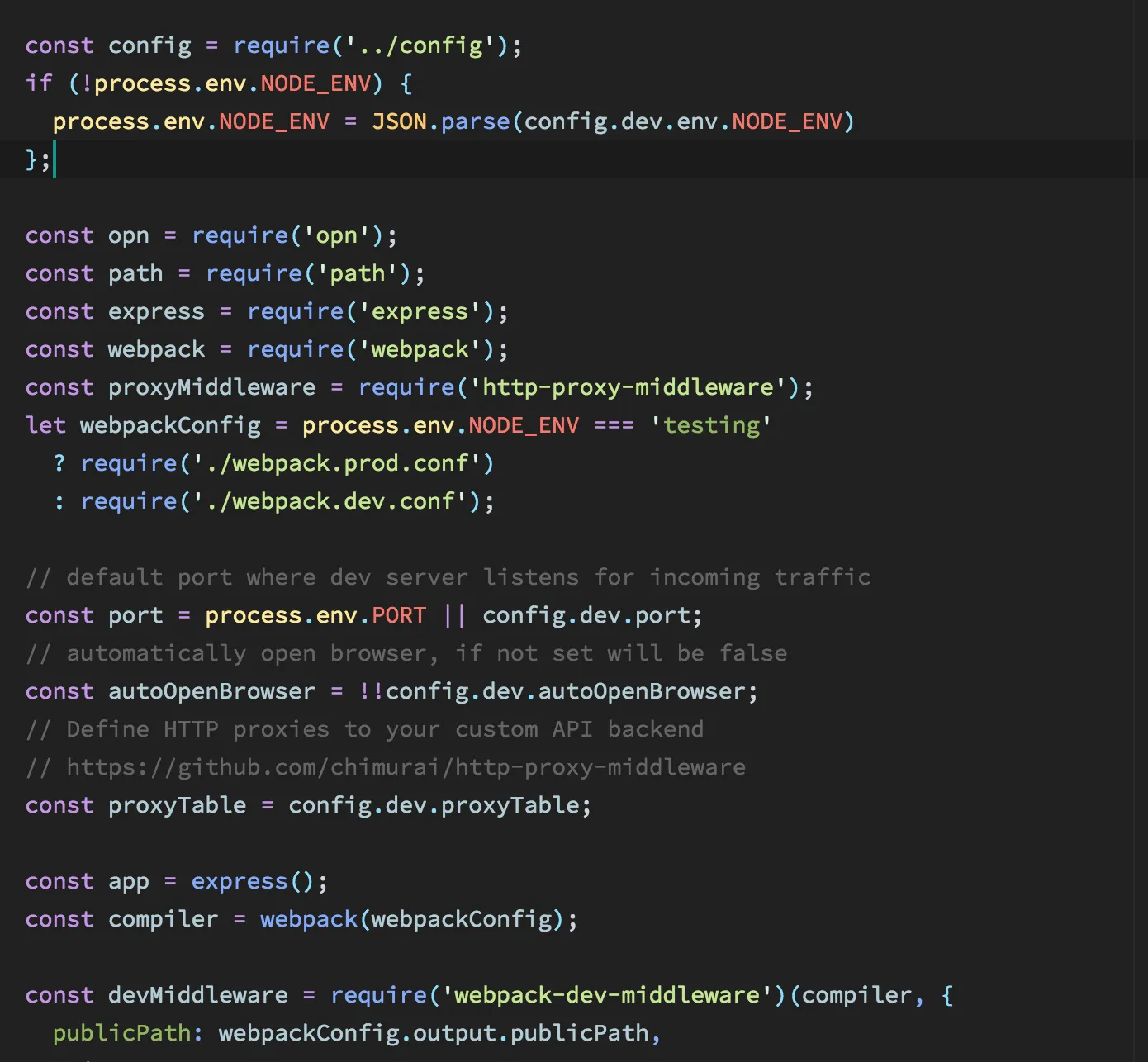
What exactly is a *proxyTable*, anyway? Why do we need so many files just to compile our code? Don't worry—we'll start from the very beginning.
Webpack is the next step in the evolution of front-end tooling. First, there was Grunt, then came Gulp, and now we have Webpack.
When you have a more complex and resource-heavy project, Webpack is definitely the way to go. For example, you might need to compile JavaScript, SCSS, import files, hot-reload without affecting the current state, bundle production builds, and more.
### Webpack to the Rescue
If you want to become a well-rounded frontend engineer, knowing Webpack is essential. I'll try to make this as easy as possible.
### Let's Get Started!
Things You'll Need:
* Basic knowledge of Node.js
* NPM (Node Package Manager)
* Basic command line/terminal skills
* A text editor (any will do)
* A Unix-like operating system (Mac or Linux)
* Install Node.js
### Setting Up Webpack
With Node.js and NPM installed, we're ready to set up Webpack. Start by creating a new project folder and navigate to it in your terminal. Initialize a new Node.js project with:
```sh
npm init -y
```
This will create a *package.json* file, which is the basic configuration file for your project.
Now, let's create the necessary files: **index.html**, **webpack.config.js**, and **index.js**. Your project structure should look something like this:
```text
my-project/
├── index.html
├── webpack.config.js
└── index.js
```
### Install Webpack Dependencies
We need to install Webpack and Webpack Dev Server, which will serve our files via HTTP.
```bash
npm install --save-dev webpack webpack-dev-server
```
### Configuring Webpack
Open **webpack.config.js** and start by requiring Webpack:
```javascript
const path = require('path');
module.exports = {
entry: './index.js',
output: {
filename: 'bundle.js',
path: path.resolve(__dirname, 'dist'),
},
mode: 'development',
};
```
This basic configuration tells Webpack where to find the entry file *(index.js)* and where to output the bundled file (bundle.js).
### Connecting Webpack to HTML
In *index.html*, include the bundled JavaScript file by adding a `